

Private AI Foundation — Connected-Site Runbook
The step-by-step companion to 33-private-ai-foundation.md
for a site with internet access. A connected build pulls most artifacts
straight from Broadcom and NVIDIA, so there is little to stage: the work is the
order, who does it in which console, the tokens, and the settings
that are easy to miss. For a disconnected site use
36-paif-dark-site-walkthrough.md; the
install and activation of Private AI Services in
§7 and
§8 is shared by both.
Evidence level: from the VMware Private AI Foundation with NVIDIA 9.1 PDF (read 2026-10-30) and KB 388470. Not run on a build in this repo yet. Where a step is general practice rather than Broadcom’s text, it says so.
Prerequisite for everything: the GPU hosts and the GPU workload domain with a
Supervisor (32-gpu-hosts.md).
The flow
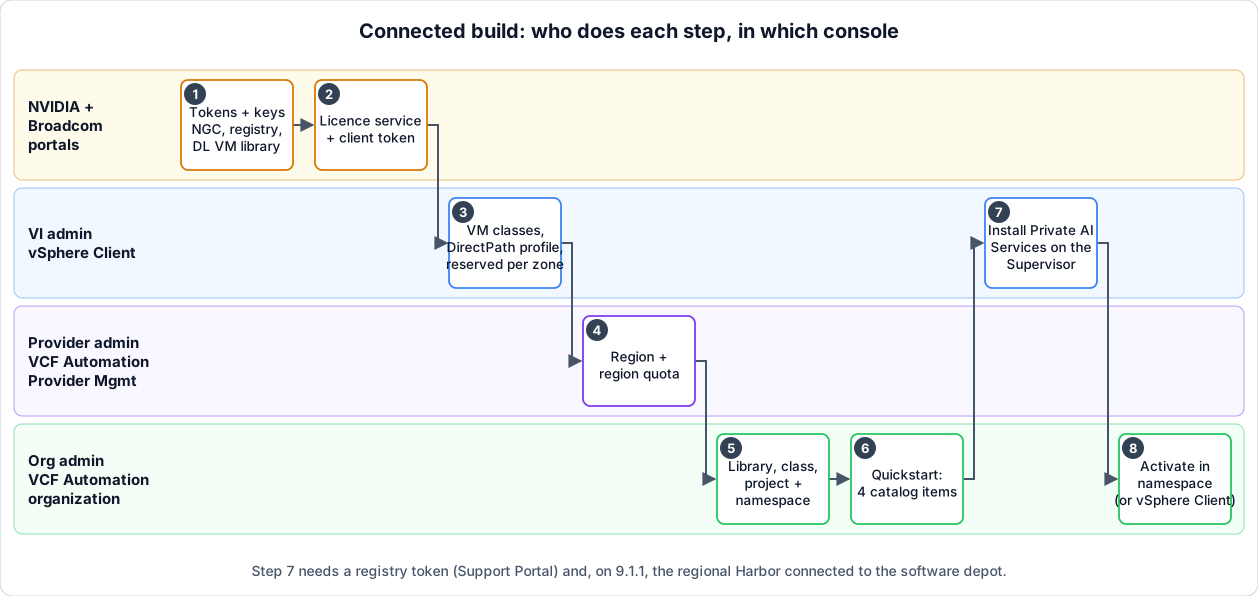
Click the picture to open it full size.
Each step has an owner and a console. A connected build has no air gap to cross, so the hand-offs are between people and consoles instead: the VI admin creates what the provider admin then shares, and the provider admin shares what the org admin then uses.
| # | Task | Role | Console | Done when |
|---|---|---|---|---|
| 1 | Collect tokens and keys | Platform + NVIDIA licence owner | Support Portal, NGC | All four items in hand |
| 2 | Licence service and client token | Platform | NVIDIA Licensing Portal | Client configuration token generated |
| 3 | VM classes | VI admin | vSphere Client (management vCenter, and the workload vCenter for the DirectPath profile) | Reserved VM classes exist per zone |
| 4 | Region and region quota | Provider admin | VCF Automation Provider Management | The organization has a quota in the GPU zone |
| 5 | Library, namespace class, project, namespace | Org admin | VCF Automation organization (+ CLI for reserved classes) | A namespace exists in a project |
| 6 | Quickstart | Org admin | VCF Automation organization | Four catalog items visible |
| 7 | Install Private AI Services | VI admin | vSphere Client | Service shows as configured |
| 8 | Activate Private AI Services | Org admin or VI admin | VCF Automation or vSphere Client | Model endpoints can be created |
Steps 1 and 2 can start on day one. Step 3 needs the Supervisor. Steps 7 and 8 are only for Private AI Services; the Quickstart (6) is for deep learning VMs and VKS clusters. You can do either path, or both.
1. Collect tokens and keys
| Item | Where from | Needed for |
|---|---|---|
| NVIDIA client configuration token | Your NVIDIA License Service instance (33 §2) | Quickstart, deep learning VMs, GPU Operator |
| NGC API key | NVIDIA NGC (API keys) | Pulling NVIDIA AI Enterprise containers |
| Broadcom registry token | Support Portal → My Downloads → Registry Tokens → Generate Token → copy the token | Private AI Services from pais-docker.packages.broadcom.com; on 9.1.1 dlvm.packages.broadcom.com |
| Deep learning VM library URL | https://dl.broadcom.com/<download_token>/PROD/COMP/DLVM/<version>/lib.json (no authentication) | Content library, step 5 |
Passwords you type into the Quickstart (a private registry, a proxy) are saved as secrets in VCF Automation (PAIF 9.1).
2. NVIDIA licence service
For vGPU only (passthrough needs no NVIDIA licence). On the NVIDIA Licensing
Portal, configure a License Service instance and generate the client
configuration token (NVIDIA License System docs). Keep the .tok
content somewhere the org admin can reach it: the Quickstart asks you to paste
its contents.
Behind a proxy: the Quickstart’s Cloud option supports only an unauthenticated HTTP proxy for vGPU licence registration (PAIF 9.1). Plan an exception if your proxy requires a login.
3. VM classes
Where: the vSphere Client, on the management vCenter
(https://<management_vcenter_fqdn>/ui), except step 1 which is on the workload
domain vCenter. Background and rationale:
33 §3.
-
DirectPath Profile (only for classes with GPU reservation), on the workload domain vCenter: Policies and Profiles → DirectPath Profiles → Create. Select the workload domain’s vCenter and the vGPU or passthrough device, then give it a name.
-
Create the VM classes: Private AI Foundation → Set Up Environment → Create VM classes with NVIDIA vGPUs → Start; select the GPU workload domain; then:
Setting What to enter Compatibility ESX 9.0 and later CPU, memory The class size Reservation and limit GPU-reserved classes: the same non-zero value for both, for CPU and for memory Memory Reserve all guest memory: AI/ML workloads need full memory reservation PCI device The NVIDIA vGPU profile or the passthrough device Network adapter (optional) Enhanced DirectPath I/O on an accelerated NIC, for GPUDirect RDMA Passthrough GPUs mapping > 16 GB pciPassthru.use64bitMMIO = true, andpciPassthru.use64bitMMIOSizeGBsized as belowSizing
pciPassthru.use64bitMMIOSizeGB(PAIF 9.1): number of passthrough GPUs in the class × the frame buffer of one GPU; if the total is a power of two, take the next power of two; if it lies between two, round up to the next, then once more. Example: two A100 40 GB → 80 GB → 128 → 256. -
Reserve capacity per zone: Supervisor Management → the Supervisor → Zones → ⋮ → Add Reserved VM Class; pick a vGPU or passthrough class, set the number of instances to reserve, Add Reservation; repeat per class. VCF Automation hands these instances out to organizations later.
-
Leave failover capacity. Broadcom: in a 16-host cluster keep one host as dedicated failover and let the rest carry zonal GPU reservations without exceeding the capacity of 14 hosts.
-
CPU-only models (Private AI Services on llama.cpp): make a VM class with enough CPU; no GPU settings.
Check: the classes appear under the Supervisor’s zones; the reserved counts match what you intend to give the organization.
4. VCF Automation region and quota
Where: Provider Management, as provider admin. Before starting, confirm (PAIF 9.1): the Supervisor’s NSX Manager is registered in VCF Automation, the zones are Ready (otherwise capacity is shown wrongly), an All Apps organization exists, and VPC networking for it has a public IP range, a transit gateway IP range and a VPC private IP range.
Create the region (Infrastructure → Regions → Create Region):
- Name (for example
paif-region). - The NSX Manager that integrates with the vCenters you use: one NSX Manager per region.
- One or more Supervisors.
- One or more storage classes: they must exist with the same names on every vCenter in the region.
- Submit.
Create the region quota (Infrastructure → Organizations → the organization → Region Quota → New):
- Select the region; under Region Capacity choose Share a portion of the capacity with this organization.
- To pick Supervisors, turn off Add all available supervisors and select them.
- Add the zones and set CPU and memory limits and reservations: only finite values.
- Assign and Continue; select the non-reserved VM classes and storage classes (you can edit each storage limit); Assign and Continue.
- Optional: add reserved VM classes with counts (vGPU or passthrough).
- Continue.
Rules that bite (PAIF 9.1):
- CPU and memory limits can be over-provisioned; reservations cannot.
- A reserved VM class’s count must fit the capacity of that zone on the Supervisor, not the aggregated capacity of the zone.
- You cannot give a guaranteed VM class to a quota with zero reservation, or one where reservations are not given to every zone.
- If a namespace is created with GPU reservations, a non-zero memory reservation must be at least 2 GB (guest memory overhead).
- Group GPUs of one type per cluster: a namespace is created on one cluster, so its reserved classes must be the same GPU type on the same cluster.
VCF Automation refreshes its inventory every 15 minutes. After changing a reserved class in vCenter, use Refresh on the vCenter in Provider Management instead of waiting.
5. VCF Automation organization content
Where: the organization UI, as organization administrator.
5.1 Content library for deep learning VMs (Build and Deploy → Content Hub → Content Libraries → Create Content Library):
- Name it; optionally turn on the toggle that assigns it to all current and future namespaces.
- Turn on Subscribe to an external library, Next, and enter
https://dl.broadcom.com/<download_token>/PROD/COMP/DLVM/<version>/lib.json(no authentication). Next. - Select one or more regions and a storage class for each; Next; review; Confirm.
5.2 Namespace class (Manage & Govern → Namespace Class → New): name, CPU and memory limits and reservations, at least one VM class and one storage class, and the library from 5.1; Create. A namespace class holds either reserved or non-reserved GPU classes, not both: mixed, VCF Automation treats it as reserved and requests with the non-reserved class fail (PAIF 9.1).
Reserved GPU classes: the PDF’s route for a namespace class with reserved
GPU VM classes is the CLI or API (the UI example lists non-GPU and unbound GPU
classes). On a machine with the VCF Consumption CLI and kubectl:
vcf context create cci -e <vcf_automation_endpoint> -t cci \
  --api-token ${vcf_automation_organization_api_token} \
  --tenant-name <org-name> --ca-certificate /tmp/vcfa-ca-cert.pem
vcf context use cci

kubectl get regions
kubectl get zones --field-selector spec.regionName=paif-region
kubectl get regionvirtualmachineclasssummaries --field-selector spec.regionName=paif-region
kubectl get regionvirtualmachineclassquotas    --field-selector spec.regionName=paif-region
kubectl get regionstorageclassquotas           --field-selector spec.regionName=paif-region
kubectl get vpcs                               --field-selector spec.regionName=paif-region
Create the class, then its configuration (names, zones and values are the PDF’s examples; adapt them):
apiVersion: infrastructure.cci.vmware.com/v1alpha2
kind: SupervisorNamespaceClass
metadata:
  name: medium-gpu-workloads
spec:
  description: supervisor namespace class
---
apiVersion: infrastructure.cci.vmware.com/v1alpha2
kind: SupervisorNamespaceClassConfig
metadata:
  name: medium-gpu-workloads
spec:
  contentSources:
    - name: "paif-content-library"
      type: ContentLibrary
  storageClasses:
    - name: 'vSAN Default Storage Policy'
      limit: 2000Gi
  vmClasses:
    - name: 'best-effort-large'
    - name: 'vgpu-1xa100-40c'
  zones:
    - name: domain-c10
      cpuLimit: 40G
      cpuReservation: 10G
      memoryLimit: 50Gi
      memoryReservation: 10Gi
      vmClassReservations:
        - count: 1
          vmClassName: vgpu-1xa100-40c
Apply with kubectl apply -f <file>. A * for storageClasses or vmClasses
lets users override the limits or see every class.
5.3 Project, then namespace (Manage & Govern → Projects → New; then the project → Namespaces → New Namespace): name; the namespace class from 5.2; the region; at least one zone; a networking type. Optionally turn on the Override reserved VM classes toggle to assign reserved classes per zone (the count cannot exceed Max Available) and the Override toggle for resource limits (only if the zones are not defined in the class).
Check: the namespace is created; in vCenter a resource pool exists for it on the clusters of the chosen zones.
6. Run the Quickstart (deep learning VMs and VKS)
Skip if you only use Private AI Services. As organization administrator: Overview → Private AI Foundation Quickstart → Start. You prepare both the deep learning VM and the VKS side even if you plan to use one.
| Wizard page | What to enter |
|---|---|
| Where to provision | The project and a namespace with vGPU-enabled VM classes and the Private AI images |
| NVIDIA mode | vGPU: paste the client configuration token. Fixed/Dynamic DirectPath: whole-GPU passthrough, no NVIDIA AI Enterprise licence. Only asked if the namespace has both |
| Connectivity | Cloud: drivers from the NVIDIA Licensing Portal, containers from NGC. Optional proxy (unauthenticated HTTP only for licence registration); add the external IP block, private TGW IP block and Private AI VPC CIDR (from Manage & Govern → Networking → IP Management → IP Address Blocks) to Do not use proxy for, comma-separated, so Kubernetes traffic bypasses it |
| Names and content | A suffix for the catalog item names; the Kubernetes version (one of the three newest supported); the deep learning VM image; the storage class |
| VM classes | At least one GPU class and one non-GPU class. GPU classes: reserved or non-reserved, not both, filtered by the mode. The non-GPU class runs the Kubernetes control planes. UVM-enabled classes are required for AI workstations with Triton, vGPU only |
| Data Services Manager (optional) | Toggle on to create the DSM Database item: replica mode (Single Server, or Single vSphere Cluster with three nodes), an infrastructure policy, and optionally a default storage policy and VM class. DSM VM classes differ from Supervisor VM classes |
Review, save your settings somewhere, Finish. Result: AI Workstation, Triton Inference Server, AI Kubernetes Cluster, DSM Database. Run it again to add another Supervisor, a new token, a new driver URL, a new image, other VM classes or a different proxy; each run adds items next to the old ones.
After the Quickstart:
-
9.1.1: replace
tkg-gpu-consolein the AI Kubernetes Cluster blueprint (PAIF 9.1, KB 388470). Needs a public project in the platform Harbor and a machine with Docker:echo <registry_token> | docker login dlvm.packages.broadcom.com \ --username <support-portal-login> --password-stdin docker pull dlvm.packages.broadcom.com/dlvm/ga/9.1.1.0/deep-learning-container:9.1.1.0 docker tag dlvm.packages.broadcom.com/dlvm/ga/9.1.1.0/deep-learning-container:9.1.1.0 \ <harbor-fqdn>/<public-project>/deep-learning-container:9.1.1.0 docker push <harbor-fqdn>/<public-project>/deep-learning-container:9.1.1.0Then edit the blueprint (Build & Deploy → Content Hub → Blueprint Design → Blueprints): change
image: paif.packages.broadcom.com/tkg-gpu-console:9.0.0.0toimage: <harbor-fqdn>/<public-project>/deep-learning-container:9.1.1.0, save and publish. -
9.0 / 9.1.0: GPU Operator v25.3.1 in the blueprint is end-of-life; update to v26.3.1 (KB 439984).
-
Check the catalog items are visible to the project members, and watch the first provisioning.
7. Install Private AI Services (the Supervisor Service)
Shared with the dark-site build. Where: the vSphere Client, as VI admin.
Prerequisites in 33 §9: Data
Services Manager, an OIDC provider, Harbor as the Supervisor’s default container
registry. Install source (3.0):
| Where the package is | YAML to download | When |
|---|---|---|
| Software depot, through a regional Harbor | pais-3.0.0.yml | VCF 9.1.1, connected |
pais-docker.packages.broadcom.com | pais-3.0.0-external.yaml | 9.1.0 or 9.1.1, connected or disconnected |
Steps (PAIF 9.1, Install Private AI Services on the Supervisors of the Workload Domain):
-
Registry credentials on the Supervisor (only when installing from
pais-docker.packages.broadcom.com). In the management vCenter: Supervisor Management → the Supervisor → Configure → Supervisor → Container Registries → Add Registry:Field Connected Disconnected Registry name pais-reg-credentialssame Host URL pais-docker.packages.broadcom.comyour Harbor URL Username Support Portal login e-mail Harbor username Password Broadcom registry token Harbor password (the PDF lists one value, “your OCI registry access token”) When installing 3.0 from the depot, skip this: the regional Harbor connected to the depot must hold the package in its
vcfproject and be the Supervisor’s default container registry. -
Private AI Foundation → Set Up Environment → Start → Install the Supervisor Service for Private AI Services → Start.
-
Select the workload domain, upload the YAML, then choose the service version and the Supervisor. Connected: leave YAML Service Config empty. Disconnected: paste the content of the
yaml-svc-cfg.yamlproduced by the artifact mirroring tool, and use thepaisYAML the tool created (36phase 7).
Manage the service later from Supervisor Management → Services → Private AI Services. Private AI Services can be updated without updating VCF.
8. Activate Private AI Services in a namespace
The service is installed but inactive in every namespace: you see the Private AI entry, but cannot create model endpoints yet (PAIF 9.1).
Before you start (collect these first):
-
A VM class and storage policy in the namespace for the control plane of the VKS cluster that runs model endpoints (no GPU needed there).
-
An FQDN for the instance if your organization needs one (map it to the IP after activation).
-
For knowledge bases, MCP tools or agents: a PostgreSQL database with the
pgvectorextension (Data Services Manager creates it with the extension; third-party works ifpgvectoris installed) and its CA certificate. -
OIDC details. External provider: issuer URL, client ID, the groups allowed (or an empty list), scope and claim names if not
groups, and the issuer certificate. VCF Automation as provider: the client ID from the OIDC provider proxy in Provider Management and the VCF Automation issuer certificate:openssl s_client -connect <vcf_automation_fqdn>:443 -showcerts </dev/null 2>/dev/null \ | awk 'BEGIN{c=0;p=0} /-----BEGIN CERTIFICATE-----/{c++;if(c>1)p=1} p{print} /-----END CERTIFICATE-----/{p=0}' -
The provider must support the Authorization Code flow with PKCE and OIDC Discovery; if it supports the
offline_accessscope, turn it on (refresh tokens). Not VCF SSO.
Run the wizard:
- Open it. VCF Automation: All Apps organization → Build & Deploy → the namespace → Services → Private AI → Configure Service. vSphere Client: Supervisor Management → Namespaces → the namespace → Resources → Private AI → Configure Service (needs the Local Consumption Interface installed on the Supervisor).
- Service Resources: choose the full set of capabilities (adds MCP server integration, Data Indexing and Retrieval, Agent Builder, and the database) or Model Runtime only (optionally with metrics). Pick the default storage policy for the management components, and the VM class (and optional storage policy) for the VKS control plane. Worker nodes are created per endpoint, with resources set at endpoint deployment.
- Database (full path only): PostgreSQL Cluster managed by Data Services Manager if it was created in VCF Automation in the same namespace; otherwise Bring your own PostgreSQL database with its connection details and CA certificate.
- User Access: add an OIDC provider (external: issuer URL, client ID,
certificate, optional authorized groups; VCF Automation: issuer
https://<vcf_automation_fqdn>/oidc, client ID, allowed organizations, roles, groups, TLS verification mode). Local accounts are for proof of concept and cross-organization model sharing. With VCF Automation as provider, add its issuer certificate as a CA trust bundle to the instance after activation, in every namespace that uses it. - GPU Driver: Use CPUs Only (llama.cpp), or the NVIDIA vGPU guest
driver with the client configuration token in vGPU Driver License Token
Config Map and GPU Operator overrides (a values template per the release
notes’ supported version).
driver.versionin the overrides is not honoured; for a different GPU Operator or driver version use the CLI after activation. Leave the custom OCI registry fields empty: the components are already on the Supervisor. - Finish the wizard, then check the instance reaches ready.
Check: you can create a model endpoint in the namespace, and the OIDC login works from a browser that trusts the issuer.
Troubleshooting
| Symptom | Cause | Fix | Source |
|---|---|---|---|
| Capacity shows wrongly in the quota | Zones not Ready in Provider Management | Fix the zone status first | PAIF 9.1 |
| A new or changed reserved VM class is not visible | Inventory refreshes every 15 min | Refresh on the vCenter in Provider Management | PAIF 9.1 |
| Requests with a non-reserved GPU class fail | The namespace class also holds a reserved GPU class | Keep reserved and non-reserved in separate classes | PAIF 9.1 |
| Cannot add a guaranteed VM class to the quota | Zero reservation, or not every zone has reservations | Give CPU and memory reservations in all zones | PAIF 9.1 |
| Namespace with GPU reservation is rejected | Memory reservation under 2 GB, or counts exceed the zone | Reserve ≥ 2 GB; fit the zone’s capacity | PAIF 9.1 |
kubectl/vcf says no regions | Wrong context, or the quota is missing | vcf context use cci; check the quota | PAIF 9.1 |
| Quickstart licence registration fails behind a proxy | Proxy needs authentication | Use an unauthenticated HTTP proxy, or no proxy | PAIF 9.1 |
| AI Kubernetes Cluster pulls an EOL GPU Operator | Blueprint default v25.3.1 (9.0/9.1.0) | Update to v26.3.1 | KB 439984 |
deep-learning-container:9.1.1.0 not pulled | Not logged in to dlvm.packages.broadcom.com | docker login first | KB 388470 |
| Private AI Services cannot reach its OIDC provider | Tried VCF SSO / Identity Broker | Use an external OIDC provider or VCF Automation | PAIF 9.1 |
| Service cannot pull from Harbor | Harbor CA not trusted by the Supervisor | Add the CA under Container Registries | Lam |
References
VMware Private AI Foundation with NVIDIA 9.1 (PDF) ·
KB 388470 ·
KB 439984 ·
NVIDIA License System ·
NGC API keys ·
William Lam — PAIS AMT for air-gapped ·
33-private-ai-foundation.md ·
36-paif-dark-site-walkthrough.md ·
17-vcfa-tenant-config.md